

Screenshots

Menu Bar Board & Quick Tracker screenshotMenu Bar Board & Quick Tracker screenshotMenu Bar Board & Quick Tracker screenshot

App Preview

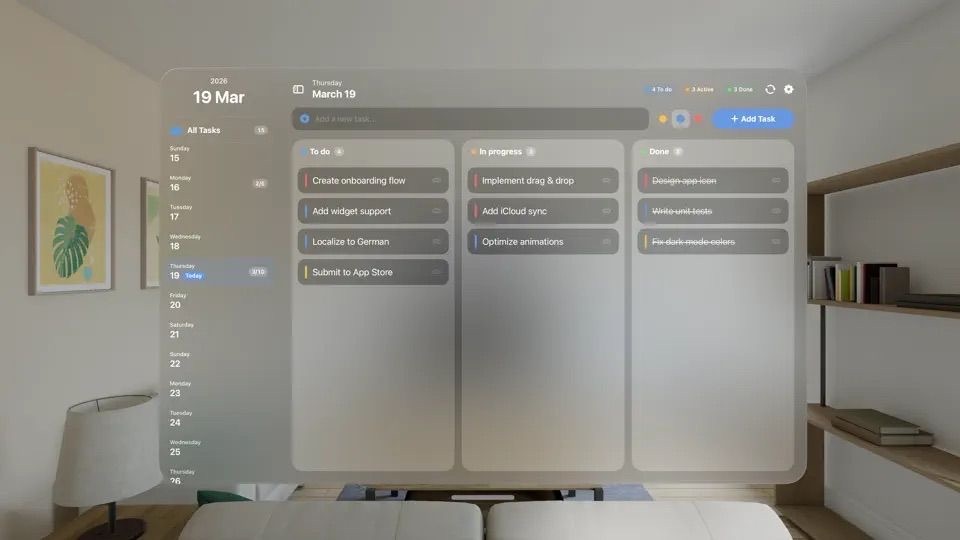
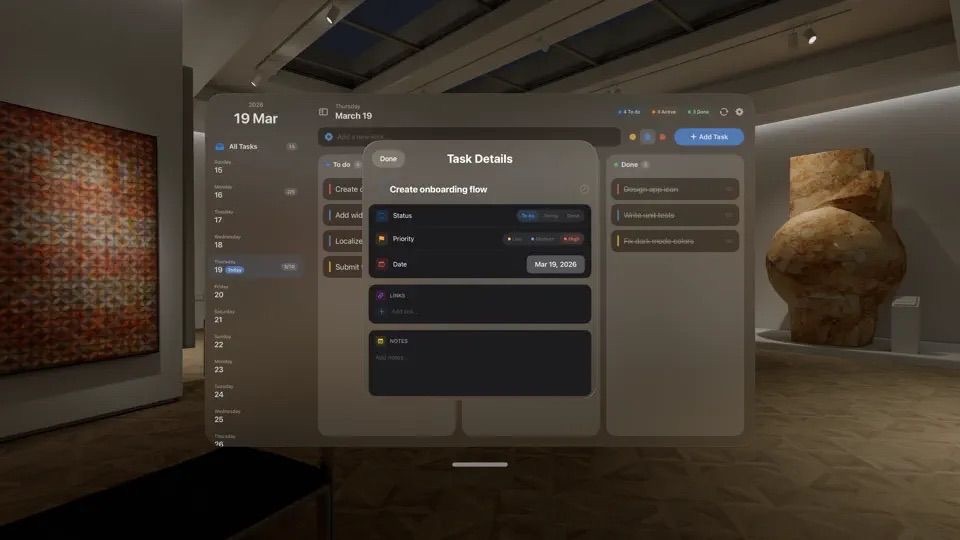
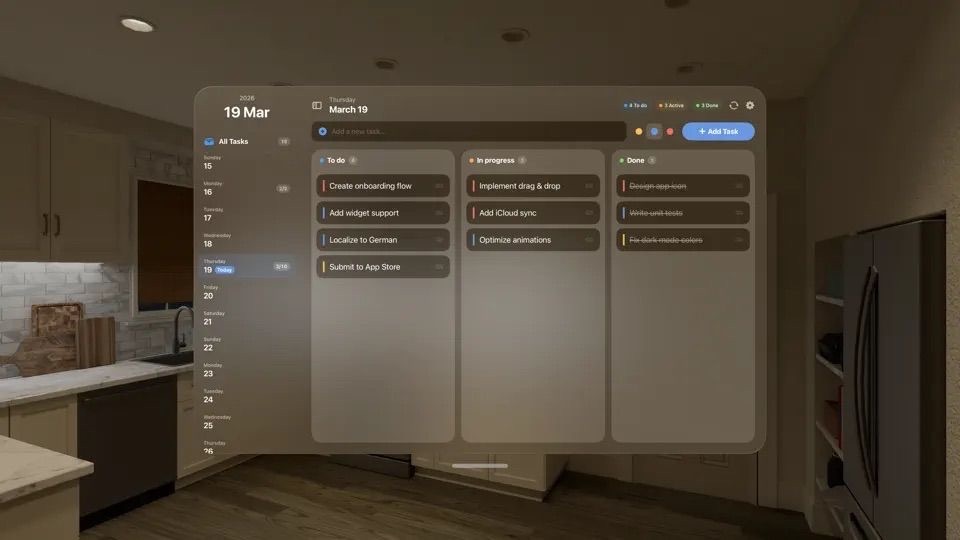
MenuToDo is the simple kanban task manager that lives in your Mac menu bar and syncs with iPhone, iPad, Apple Watch and Apple Vision Pro.

Your tasks are always one click away so you can manage your workflow without opening a full app or switching windows.

View your work in a clean kanban board with three columns To Do, In Progress and Done.

Drag and drop tasks to update status instantly and stay focused on what matters most.

With iCloud sync, widgets and a built in calendar, MenuToDo keeps your tasks organized across all your Apple devices while keeping your data private.

Developer

Are you the owner of this app?

Embed this badge and get a backlink to your website for increased visibility. Read more about the Featured Badge.


Apps for Apple Vision Dark Badge
Apps for Apple Vision Light Badge

Other apps you might like

JarVS brings multi-window VSCode to Apple Vision Pro. Open as many floating editor windows as you need, arrange them in space, and run AI coding agents in each one simultaneously.


How it works:


Install the free macOS host app: it lives in your menu bar and manages VSCode Server. Open JarVS on your Apple Vision Pro, and your macOS device appears automatically. Connect, and tap any project to open it in a new spatial window.


Built for AI-assisted development:


Create a git worktree per task. Open each in its own window. Launch Claude Code, Codex, OpenCode, Aider, or any terminal-based agent in each one. Watch them edit, refactor, test, and build features across your codebase at the same time.


Key features:
- Open unlimited floating VSCode windows.

- Remote connections: Leave your macOS (or Linux!) device at home and go work with your Apple Vision Pro.

- Git worktrees appear as separate windows. One tap to open.

- Works with any AI agent or extension that runs in VSCode or in the Terminal.

- Pin a projects widget to a wall to open it easily.

- Work on your host, continue where you left off on the Apple Vision Pro, and hop back on your host seamlessly.


Getting started takes under a minute:
- Install the macOS host app (free).

- Make sure both devices are on the same WiFi.

- Open JarVS on the Apple Vision Pro, your macOS device appears automatically.

- Browse your projects and start coding.


Requirements:
- A macOS device running the JarVS Host menu bar app.

- Both devices on the same local network.

- VS Code Server.

JarVS

JarVS brings multi-window VSCode to Apple Vision Pro.

A ball and tee in a glass globe float comfortably in your space or rest on a table. With organic controls and an adjustable speed setting, Papa's Ball and Tee presents a single, satisfying challenge you might pick up for ten seconds or ten minutes.


No levels. No leaderboard. No hero's journey. When you're ready, set the app aside and allow the high fidelity models to enhance your environment.


AVAILABLE ON: Apple Vision Pro, iPhone, iPad, and Apple Watch.


How it works:
- Pinch and drag up or down to rotate the toy.

- The ball tumbles as you attempt to land it cleanly on the tee.

- Adjust rotation speed to match your play style.

- When the ball lands, your brain does the happy chemical thing.


On Apple Watch, users rotate the Digital Crown to rotate the toy.

Papa's Ball and Tee

A ball and tee in a glass globe float comfortably in your space or rest on a table.