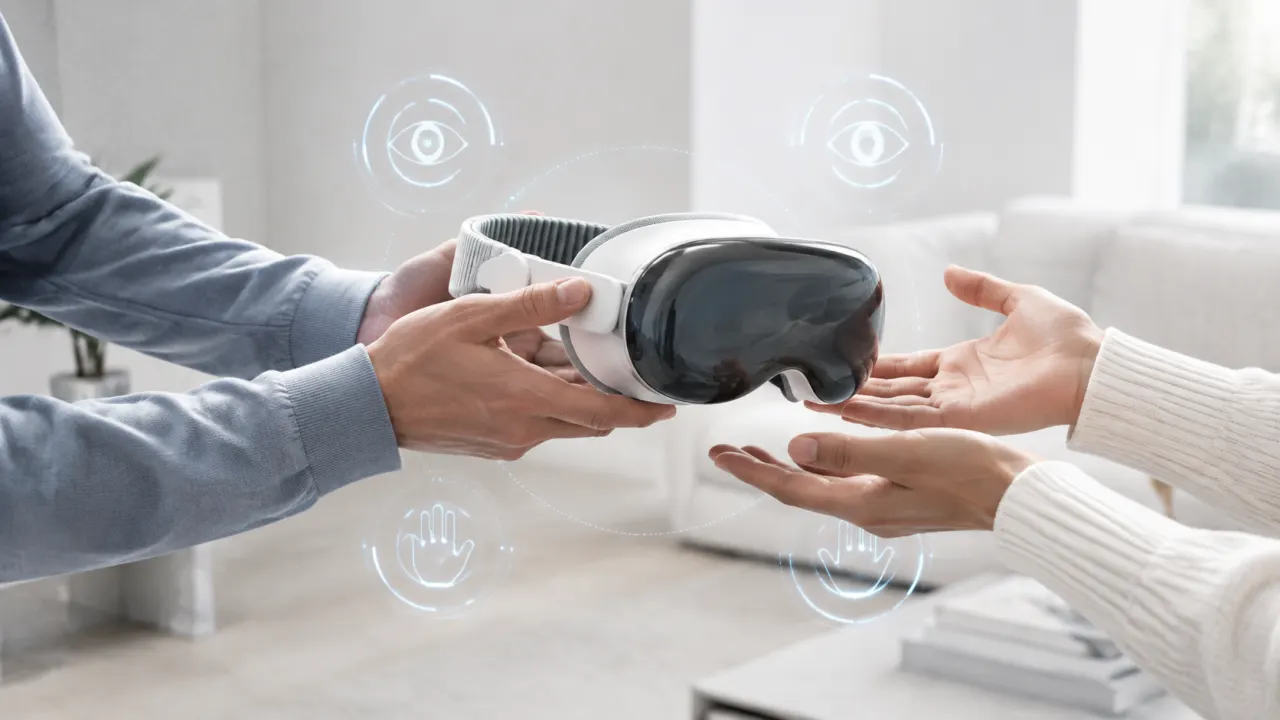
Apple Vision Pro Guest User lets another person try your headset without giving them access to Optic ID, Apple Pay, or your Persona. You can approve the session from a nearby iPhone or iPad on visionOS 2.4 or later, or start it yourself from Control Center before handing over the headset.
This guide covers both methods, the privacy choices that matter, and the quickest fixes when Guest User is not working.
Before you start
For the smoothest handoff, check these basics first:
- Update Apple Vision Pro to the latest available version of visionOS.
- To approve a guest from another device, you need visionOS 2.4 or later and a nearby iPhone running iOS 18.4 or later, or iPad running iPadOS 18.4 or later.
- Sign in to the same Apple Account with two-factor authentication on your Vision Pro and nearby iPhone or iPad.
- Turn on Wi-Fi and Bluetooth on both devices.
- Keep the devices close together.
- Make sure your guest is at least 13 years old. Apple Vision Pro is designed for people aged 13 and over.
Apple documents the current requirements in its Guest User support guide.
How to enable Guest User from your iPhone or iPad
This is the easiest method because the owner does not need to put the headset on first.
- On Apple Vision Pro, open Settings.
- Select Optic ID & Passcode.
- Select Enable Guest User with Nearby Device.
- Choose the iPhone or iPad you want to use for approvals.
- Ask your guest to put on Apple Vision Pro and press the Digital Crown when prompted.
- On your iPhone or iPad, tap Continue.
- Choose Start with All Apps, or choose Select Apps and allow only the apps you want the guest to use.
- Tap Start.
Your iPhone or iPad should begin mirroring what the guest sees. If it does not, tap the Guest User button from the Lock Screen or Control Center to open View Mirroring.
How to start Guest User from Apple Vision Pro
You can also prepare the session while you are wearing the headset:
- Open Control Center.
- Select Guest User on the right.
- Choose All Apps, or choose Select Apps and pick individual apps.
- Select Start and hand Apple Vision Pro to your guest.
The guest has five minutes to put on the headset. If that window expires, Guest User turns off and Vision Pro locks.
What the guest sees during setup
A first-time guest may need to hold the Digital Crown until the displays align, then complete a short eye and hand setup. These calibrations adapt the controls to the person wearing the headset; your own settings return when their session ends.
On visionOS 26 or later, a guest can save their eye setup, hand setup, and ZEISS Optical Insert information to an iPhone or iPad running iOS 26 or iPadOS 26. That can make a future Guest User session much faster. Apple explains the process in its saved Vision Pro setup guide.
If the most recent guest returns, they may be able to continue with the recent setup. A different person should choose Set Up as New Guest so the eye and hand calibration is correct for them.
What can a Guest User access?
The app picker is your main privacy control, but remember that allowing an app also allows the guest to see the information already visible inside it.
| Guest access | Available? |
|---|---|
| Apps you explicitly allow | Yes |
| Content inside allowed apps | Yes |
| Some Control Center settings and data | Yes |
| Optic ID | No |
| Apple Pay information | No |
| Persona | No |
| Passcode-protected Apple Account, Wallet, Health Data, and Privacy & Security settings | No |
For example, allowing Music can expose your playlists and recently played items. Before sharing the headset, close sensitive content and select only the apps needed for the demo. You can browse our Apple Vision Pro app directory beforehand and decide which experiences you want to show.
How to end a Guest User session
Guest User normally ends as soon as the guest removes Apple Vision Pro. The owner can also end the session by tapping the close button next to the Guest User window on the paired iPhone or iPad. When you put the headset on again, your own settings are restored automatically.
Apple Vision Pro Guest Mode not working? Try these fixes
The approval prompt does not appear on your iPhone or iPad
Confirm that both devices meet the minimum software versions, use the same Apple Account, have two-factor authentication enabled, and have Wi-Fi and Bluetooth turned on. Move the devices closer together, then retry the request.
The headset does not recognize the guest's eyes or hands
Ask the guest to adjust the headset, tighten or loosen the band, and hold the Digital Crown until the displays are aligned. They can reopen the Guest User menu in Control Center to redo eye and hand setup.
Because the Light Seal and bands are fitted to the owner, another person may not get a perfect fit. Personalized components or ZEISS Optical Inserts may be needed for a comfortable long-term setup.
The wrong guest setup appears
If the person wearing the headset is not the most recent guest, use the Digital Crown to select Set Up as New Guest. Reusing another person's calibration can make eye and hand input unreliable.
The guest cannot find an app
End the session and start again with All Apps, or use Select Apps and explicitly allow the missing app. Guest access cannot be expanded silently after the handoff without the owner's approval.
Is Guest User the same as a separate user account?
No. Guest User is a temporary session for sharing one Apple Vision Pro. It does not create a permanent second visionOS account, and the headset returns to the owner's settings when the session ends. Saved guest calibration data can speed up future visits, but it does not turn Vision Pro into a traditional multi-user computer.
A simple privacy-first handoff checklist
Before passing over the headset:
- Choose only the apps the guest needs.
- Review private content inside those apps.
- Start View Mirroring so you can guide the experience.
- Help the guest adjust the fit before calibration.
- End the session when the demo is finished.
That small amount of preparation makes Guest User faster, safer, and much less awkward for everyone involved.
Sources and credit: Apple Support — Let another person use your Apple Vision Pro with Guest User and Apple Support — Save your Apple Vision Pro setup to an iPhone or iPad. Cover artwork was created for Apps For Apple Vision Pro.