Apple Vision Pro Travel Mode adjusts tracking for the motion of a plane, train, car, or bus. Turn it on from Control Center, or press the Digital Crown when Vision Pro detects that you are traveling and shows an alert. Use it only while seated as a passenger—never while driving or operating a vehicle.
Here is how to prepare, enable it, and fix the most common tracking problems.
What does Apple Vision Pro Travel Mode do?
Vision Pro normally expects your surroundings to stay relatively stable. A moving vehicle breaks that assumption: the cabin accelerates, turns, and vibrates even though your seat appears stationary relative to you.
Travel Mode adapts the experience to that unusual motion so windows and immersive content remain usable. Apple currently supports it for these situations:
| Type of travel | Supported use |
|---|---|
| Airplane | While seated during the safe portion of the flight |
| Train | While seated |
| Car | Rear-seat passenger only |
| Bus | While seated; works best on long-distance and commuter buses |
Do not use Travel Mode when you are not traveling. Apple also says to stay aware of your surroundings because features that normally help you see and understand the space around you are turned off in Travel Mode.
How to turn on Travel Mode from Control Center
- Put on Apple Vision Pro and open Control Center.
- Select the Travel Mode button.
- Select Turn On Travel Mode to confirm.
To exit, open Control Center again and select Turn Off.
If Vision Pro detects that you are already moving, it may show a Turn On Travel Mode alert. Press the Digital Crown to confirm. If the alert appears when you are not traveling, turn the Digital Crown to select Cancel, then press it.
Apple's current instructions are available in the official Travel Mode support guide.
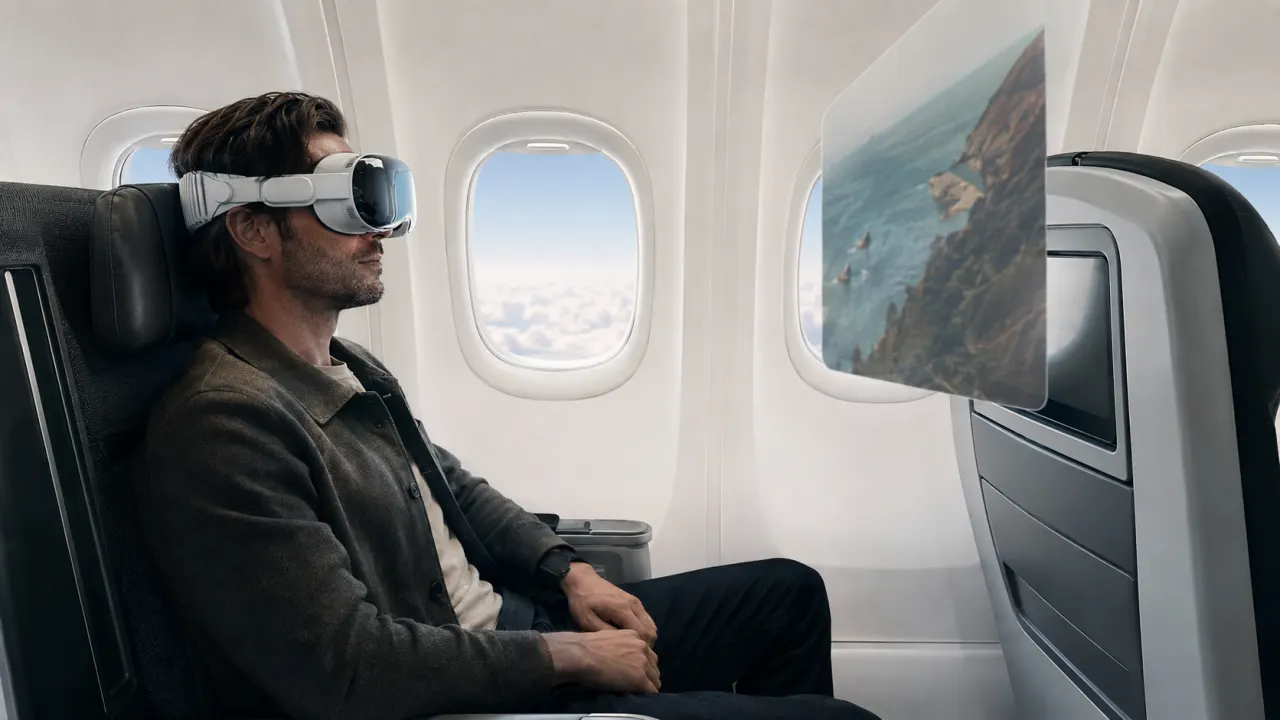
Using Apple Vision Pro on an airplane
Travel Mode can turn a long flight into a private cinema or workspace, but timing and safety matter.
- Take off Vision Pro during taxiing, takeoff, and landing.
- Remove it whenever the flight becomes turbulent.
- Stay seated while wearing the headset.
- Avoid looking out the window, which can make environmental tracking less reliable.
- Take the headset off before standing up or moving through the cabin.
- Follow every instruction from the cabin crew.
If you plan to watch downloaded movies or use offline apps, prepare them before boarding. You can explore our Apple Vision Pro app directory to build a travel shortlist in advance.
Using Travel Mode on a train
Turn on Travel Mode after you are seated. Trains can create smooth but continuous motion, rapid scenery outside the windows, and occasional jolts. Face into the carriage instead of staring through a side window, and re-center your view if a window slowly shifts.
Long-press the Digital Crown when content appears tilted or off-center. That resets the forward direction without requiring you to leave Travel Mode.
Using Travel Mode in a car or bus
Apple says Vision Pro should be used only from the rear seat of a moving car. Never wear it while driving, cycling, operating machinery, or sitting where the headset could interfere with the driver.
On a bus, Travel Mode works best on long-distance and commuter routes. Remain seated, keep your charging cable from blocking the aisle, and remove the headset before the bus reaches your stop.
Important Travel Mode limitations
Some features are unavailable or behave differently while Travel Mode is active:
- Persona and FaceTime are unavailable.
- You cannot perform the first-time Apple Vision Pro setup while traveling.
- If you restart Vision Pro, Travel Mode turns off.
- Environmental awareness features are reduced, so you must be deliberate about staying safe.
- Pointer Control set to use your head may make manual activation difficult after movement begins.
If you use head-based Pointer Control, Apple recommends enabling Travel Mode before the vehicle begins moving. On an airplane, you can turn it on beforehand, remove the headset for takeoff, and put it back on when the crew says it is safe.
Fixing “Tracking Failed” while traveling
When Vision Pro cannot track the environment, the display may go dark and show a Tracking Failed alert.
If you are traveling, press the Digital Crown to enable Travel Mode. If you are stationary, select Cancel, stay still, and wait for tracking to recover instead of enabling Travel Mode unnecessarily.
If tracking remains unstable during travel:
- Stay seated and look away from fast-moving scenery outside.
- Make sure Travel Mode is still on; it switches off after a restart.
- Long-press the Digital Crown to re-center the view.
- Remove the headset if conditions become rough or unpredictable.
Can you use an immersive Environment in Travel Mode?
You can use supported windows and immersive content, but Travel Mode reduces the features that keep you aware of the real space around you. Choose a level of immersion that still lets you respond quickly, and remove the headset any time the situation needs your attention.
Does Travel Mode work without Wi-Fi?
Travel Mode itself is a tracking setting, not an internet connection. Apps and media may still require Wi-Fi unless their content has been downloaded in advance. Check the requirements of each app before the trip.
Does Travel Mode stay on after a restart?
No. Restarting Apple Vision Pro turns Travel Mode off. Re-enable it once you are seated and it is safe to use the headset again.
The short version
Turn Travel Mode on from Control Center, stay seated, avoid looking through vehicle windows, and long-press the Digital Crown if content drifts. On a plane, remove Vision Pro for taxiing, takeoff, landing, and turbulence. In a car, use it only as a rear-seat passenger.
Source and credit: Apple Support — Use Apple Vision Pro with Travel Mode. Cover artwork was created for Apps For Apple Vision Pro.